Accessibility Features
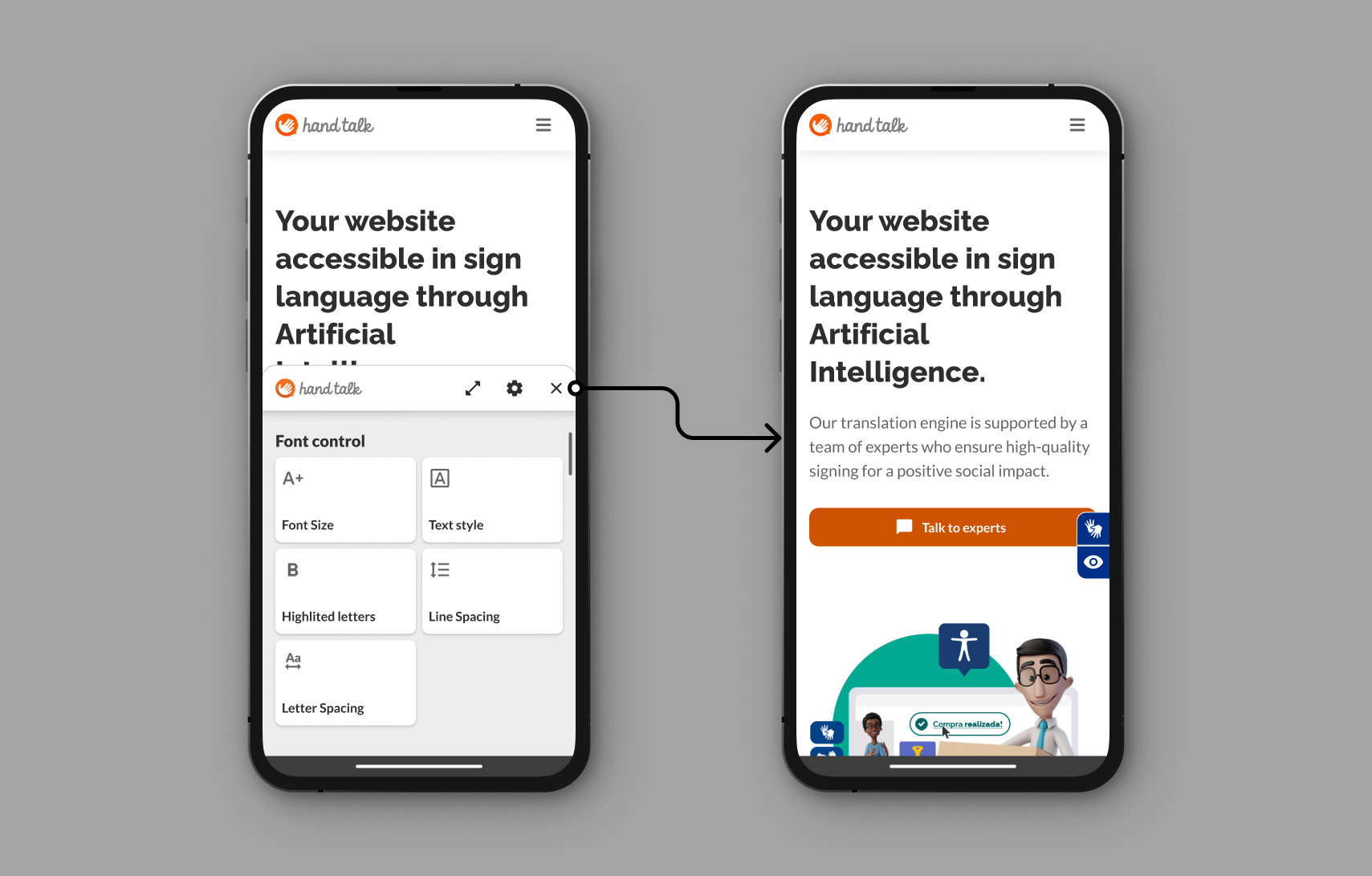
Below, you can see the list of all Accessibility Features. Users can access the Hand Talk Plugin Accessibility Features by clicking the button with the eye icon.
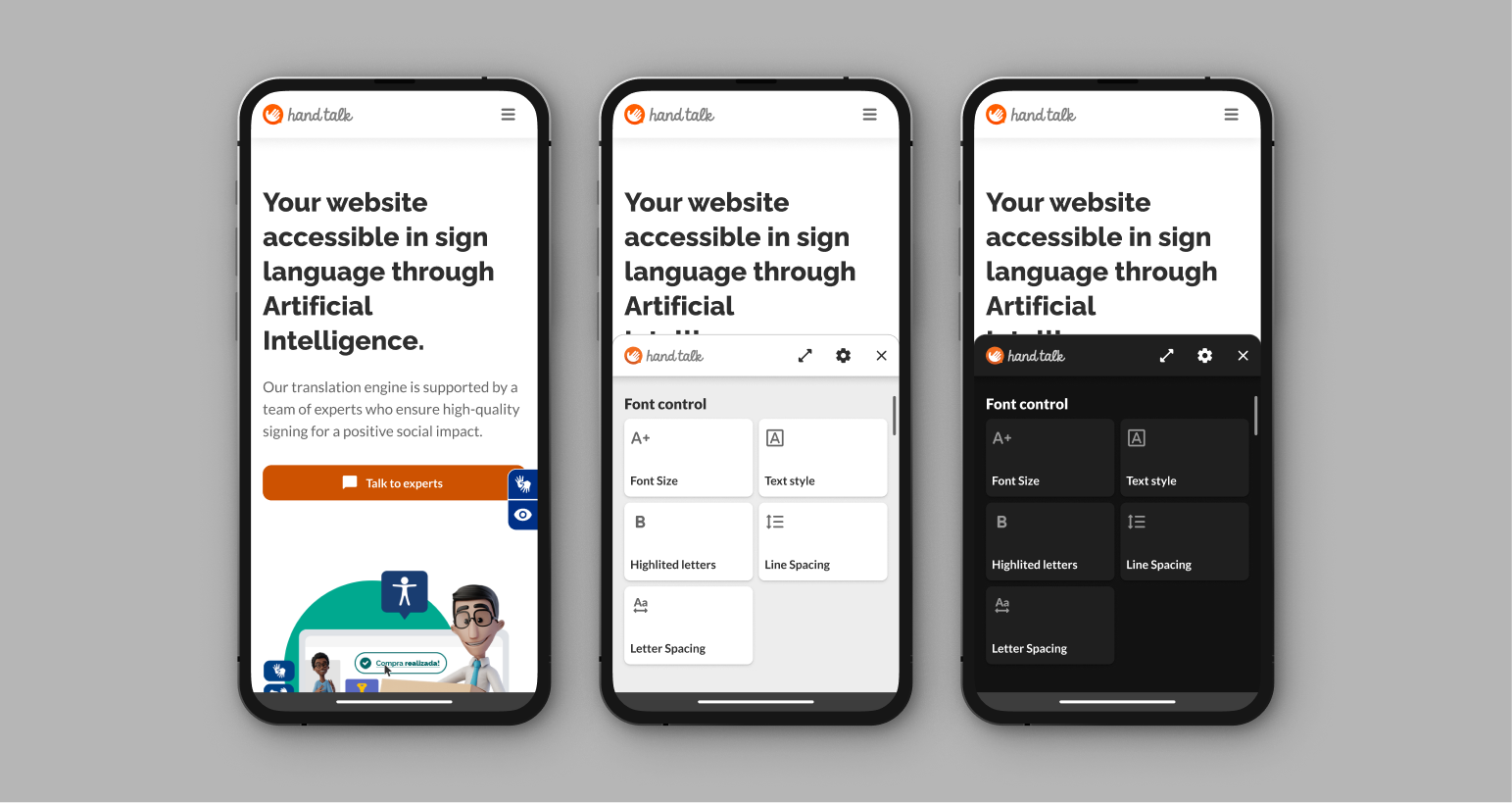
The Accessibility features are divided into four groups:
- 📌 AI Assistant
- 📌 Font Control
- 📌 Navigation
- 📌 Color Control
AI Assistant
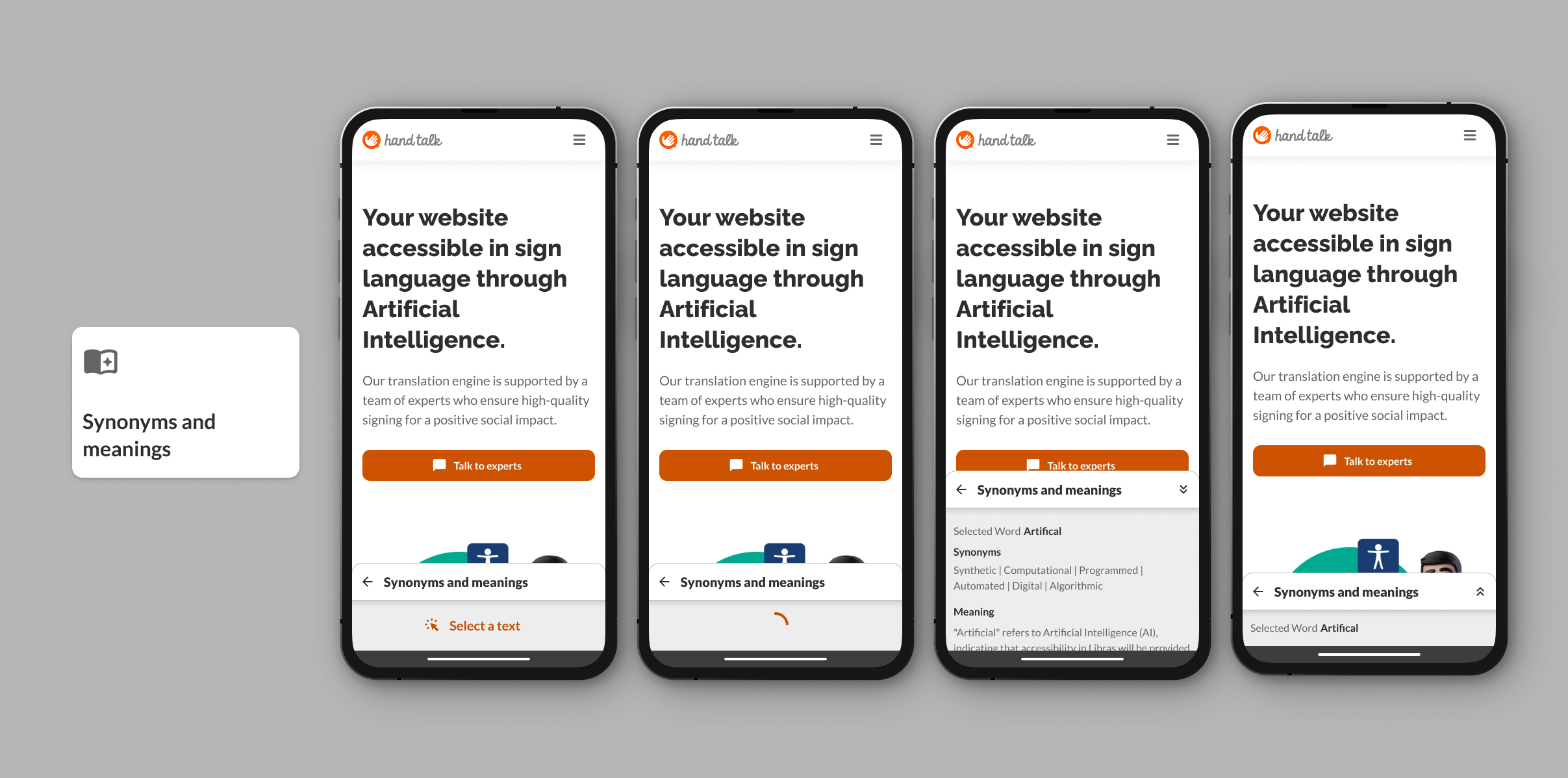
Synonyms and meanings
The Synonyms and meanings feature is an assistive functionality designed to enhance text comprehension and promote semantic inclusion. It allows users to click on any word while browsing a website to view:
- ✅ The meaning of the word;
- ✅ A list of synonyms;
- ✅ Contextual usage examples.
This functionality addresses a common barrier faced by users with cognitive disabilities, neurodivergence (such as dyslexia or ADHD), limited literacy, or low proficiency in the website language.
By providing in-context semantic support directly in the reading flow, it offers a more autonomous and fluid reading experience without requiring the user to leave the page.
Font Control
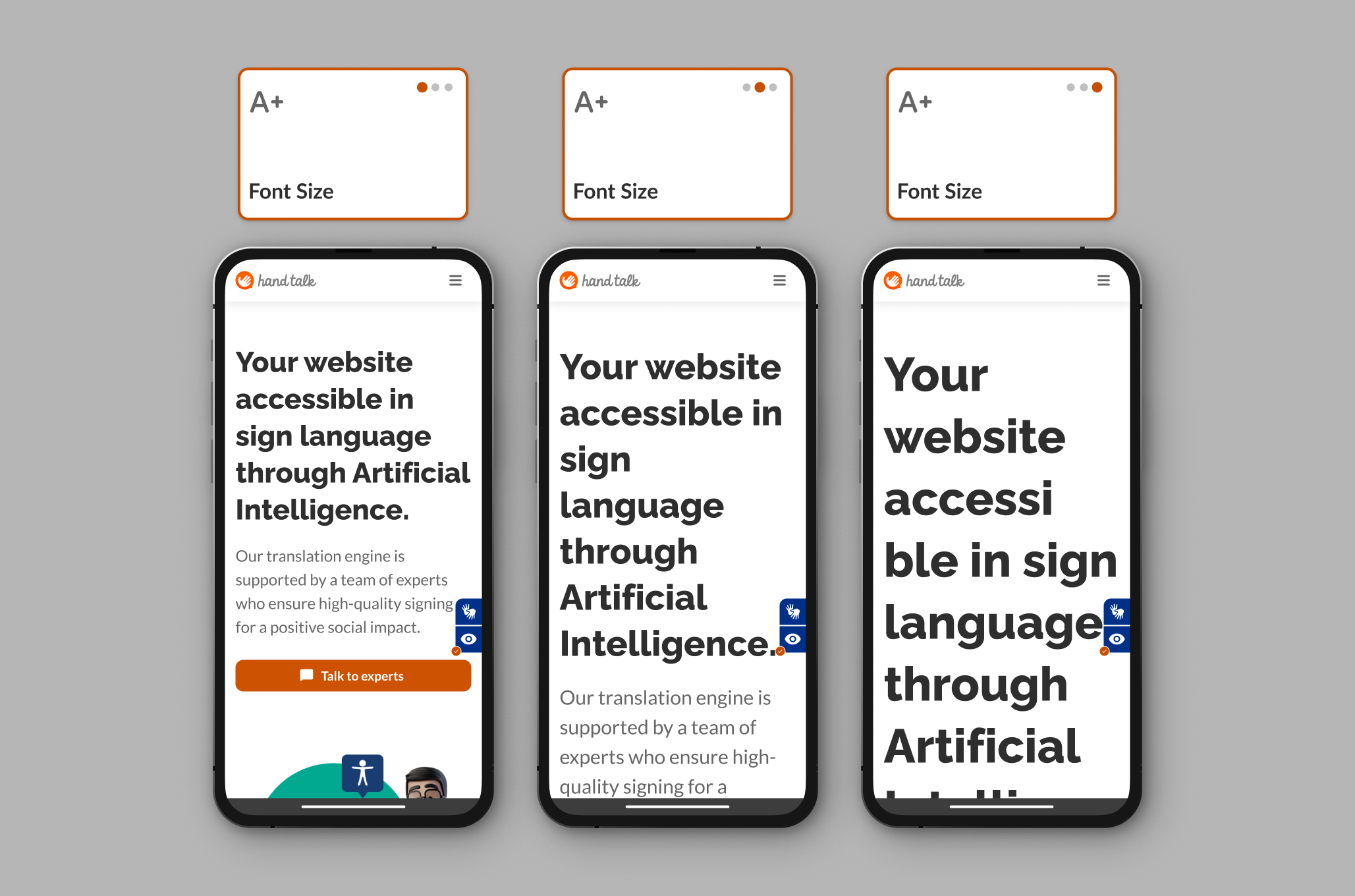
Font Size
The Font Size feature allows users to increase the font size, switching between three options: 120%, 150%, or 200%, providing better readability for site texts.
Text Style
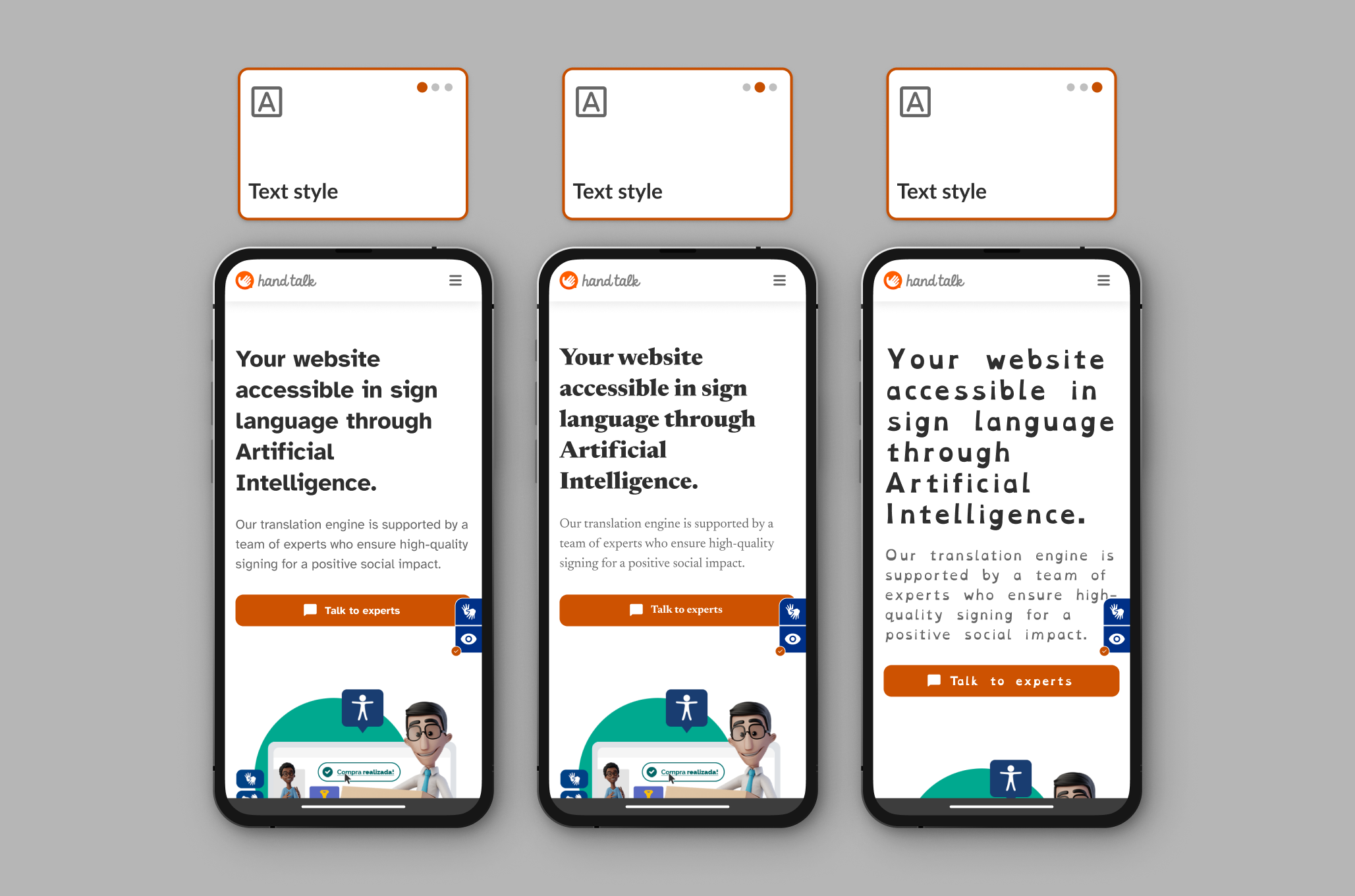
Changes the font of all page texts among the following options:
-
Default: Keeps the fonts already present on the site.
-
Atkison Hyperlegible: Designed to improve readability for people with low vision. It features distinct letter shapes to avoid confusion between similar characters.
-
Newsreader: A serif font optimized for comfortable reading in long texts, especially in digital environments.
-
Open Dyslexic: An accessible font created to help people with dyslexia, featuring characteristics that make each letter unique and easier to distinguish. Shapes are reinforced to reduce visual confusion and letter reversal.
Highlighted Letters
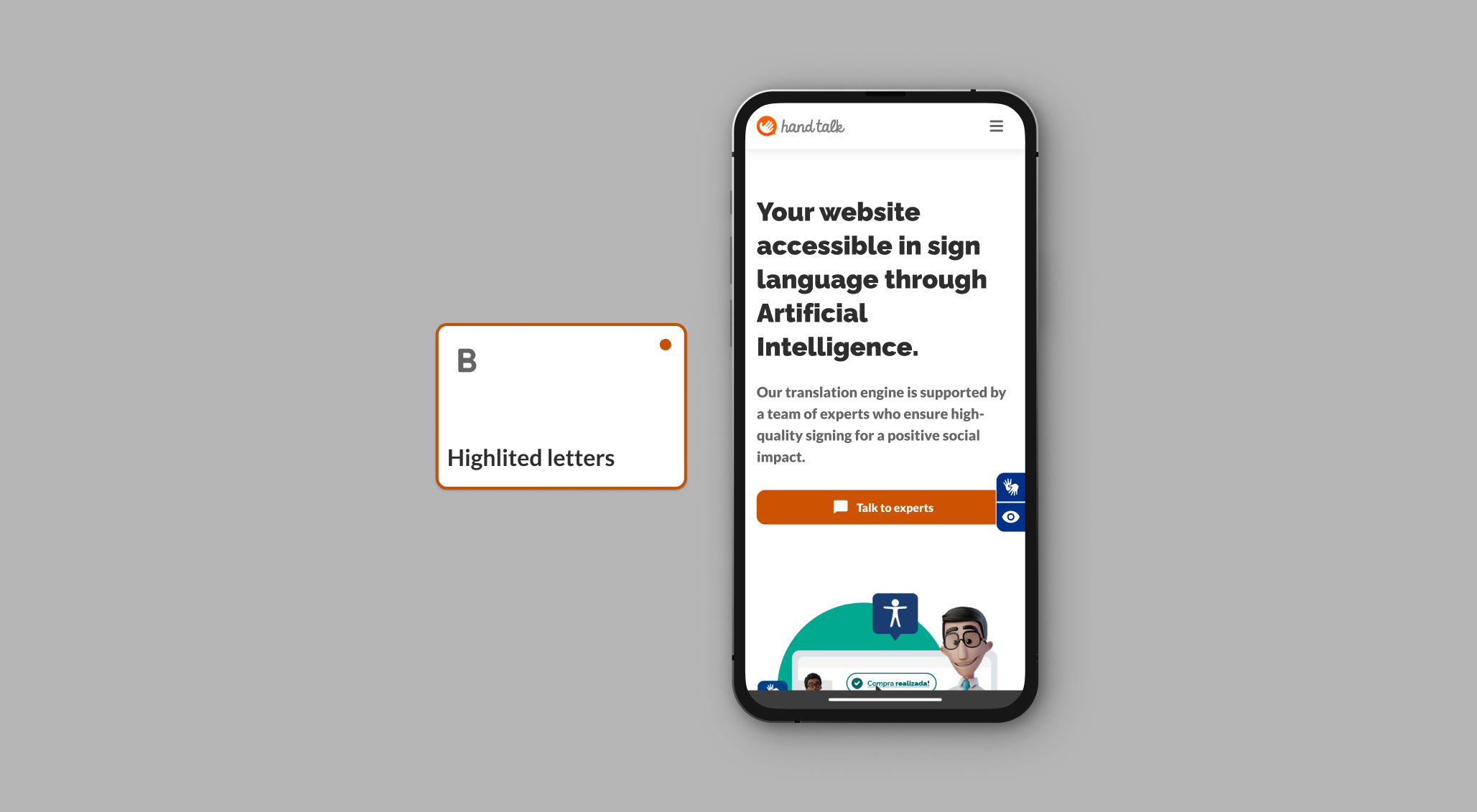
The Highlighted letters feature highlights all texts on the page by making them bold.
Line Spacing
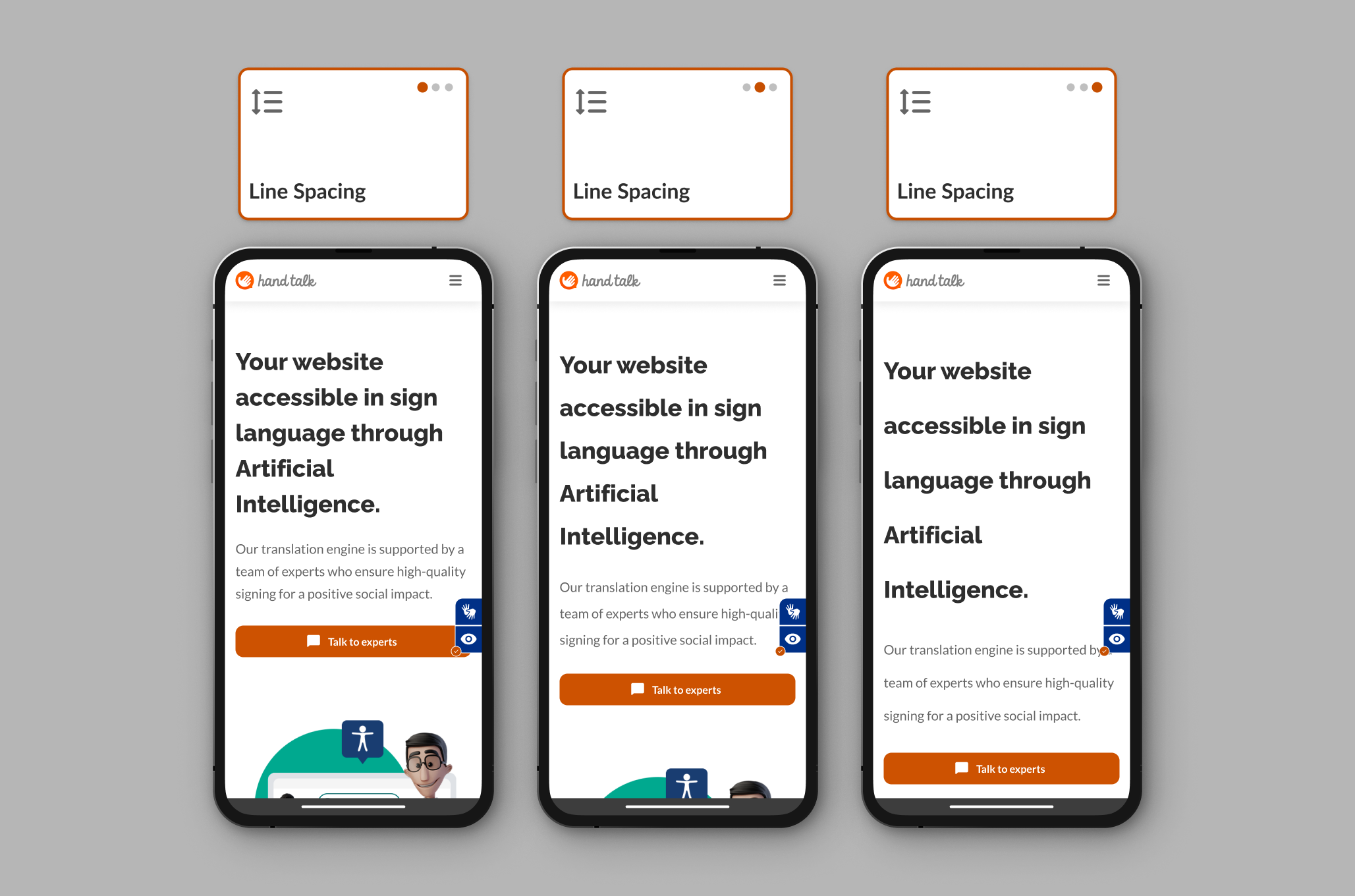
This feature allows users to adjust the line spacing of the text on the site. Users can switch between 120%, 150%, or 200% spacing for a more comfortable reading experience.
Letter Spacing
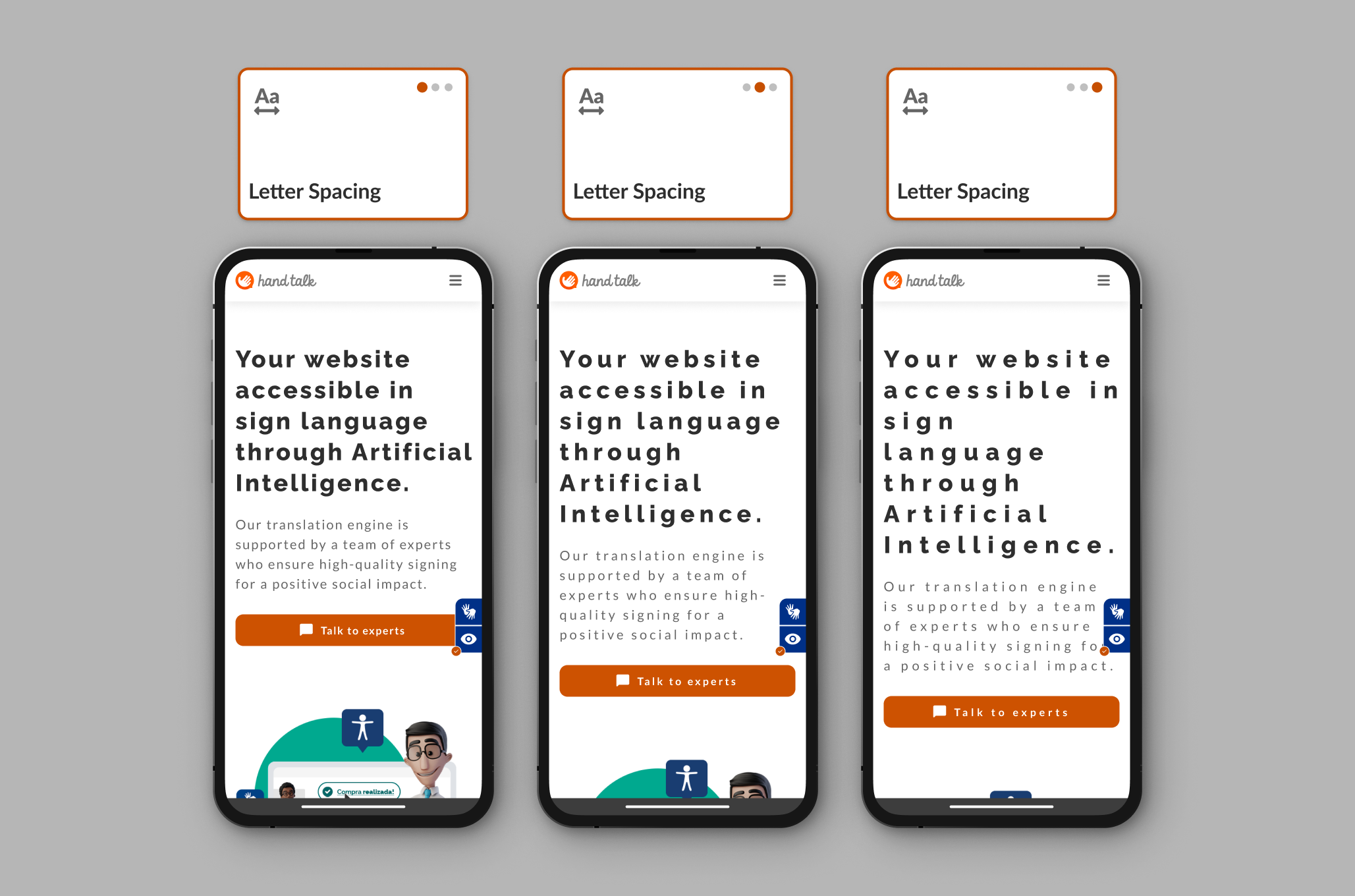
The Letter Spacing Accessibility feature allows users to switch between three different space levels: 120%, 150%, and 200%. This feature aims to improve readability for users with low vision.
Navigation
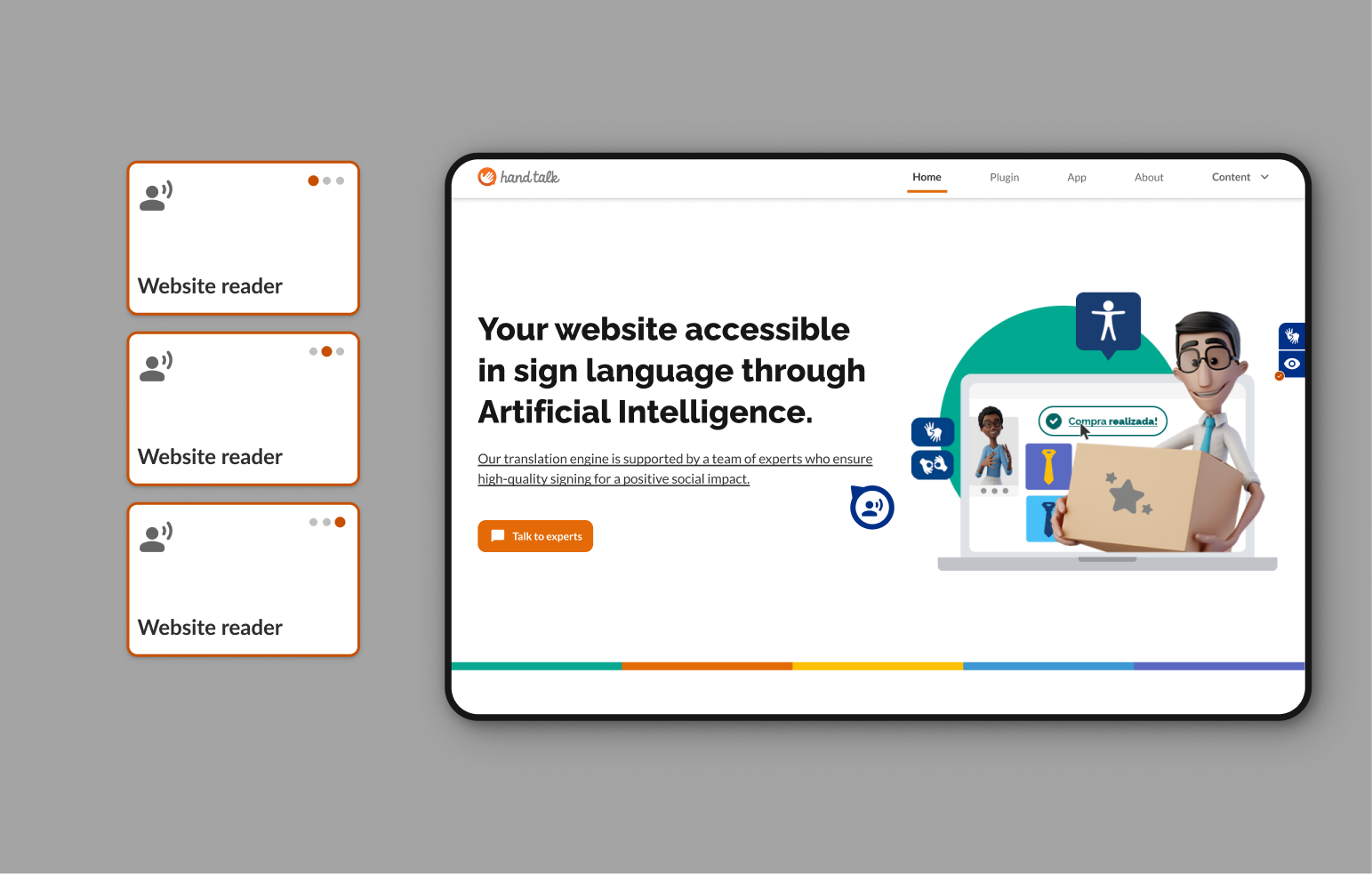
Website Reader
By enabling the Website Reader feature, users can click on the desired text, and the feature will read the content displayed on the site, including alternative text for images, making information more accessible. The feature offers three reading speeds: normal, fast, and slow.
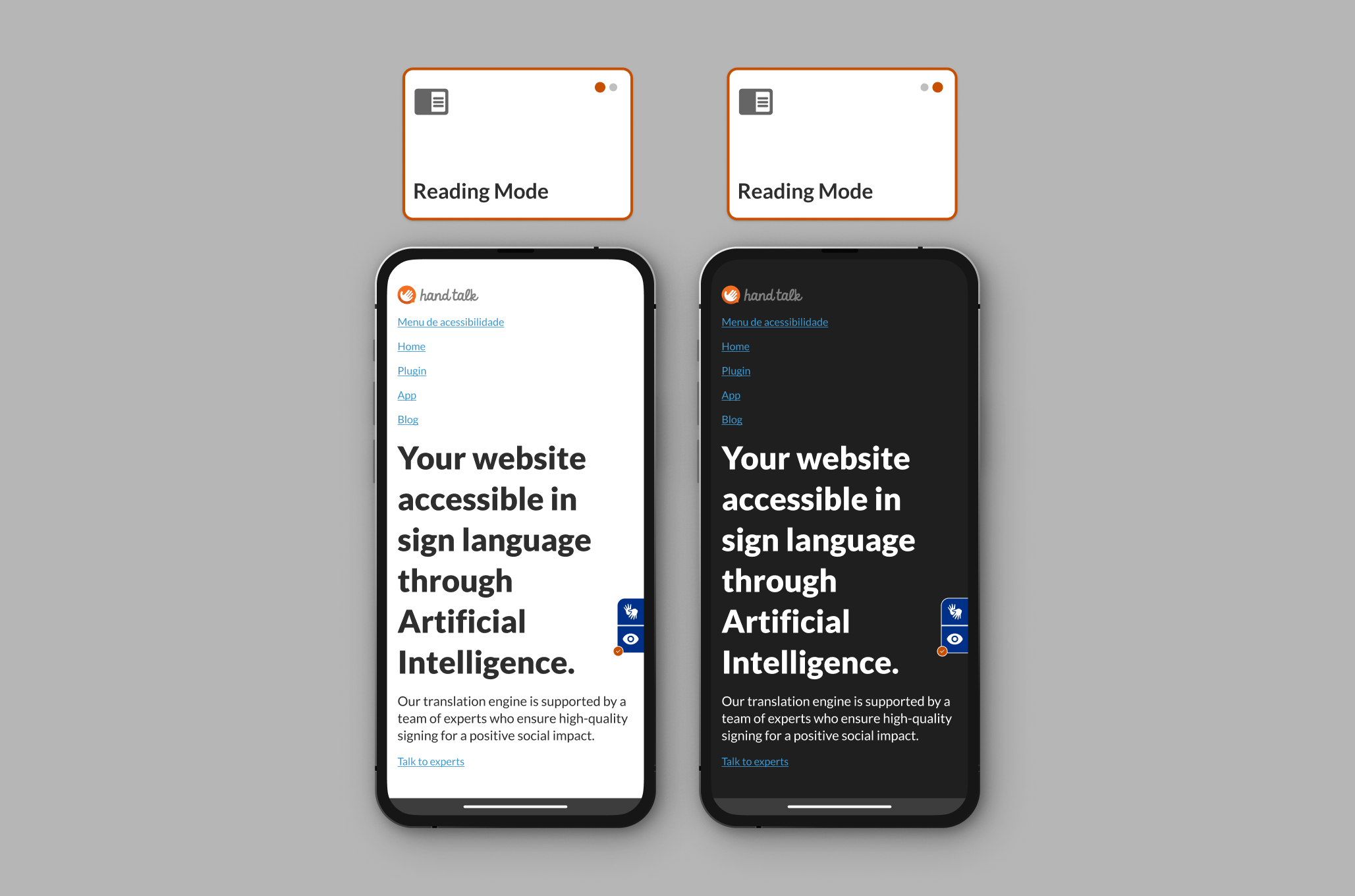
Reading Mode
Reading Mode gathers important content for reading by removing ads and other elements that may distract the reader, aligning texts to the left. This feature adapts to the user's contrast settings, following the light or dark mode preset by the reader.
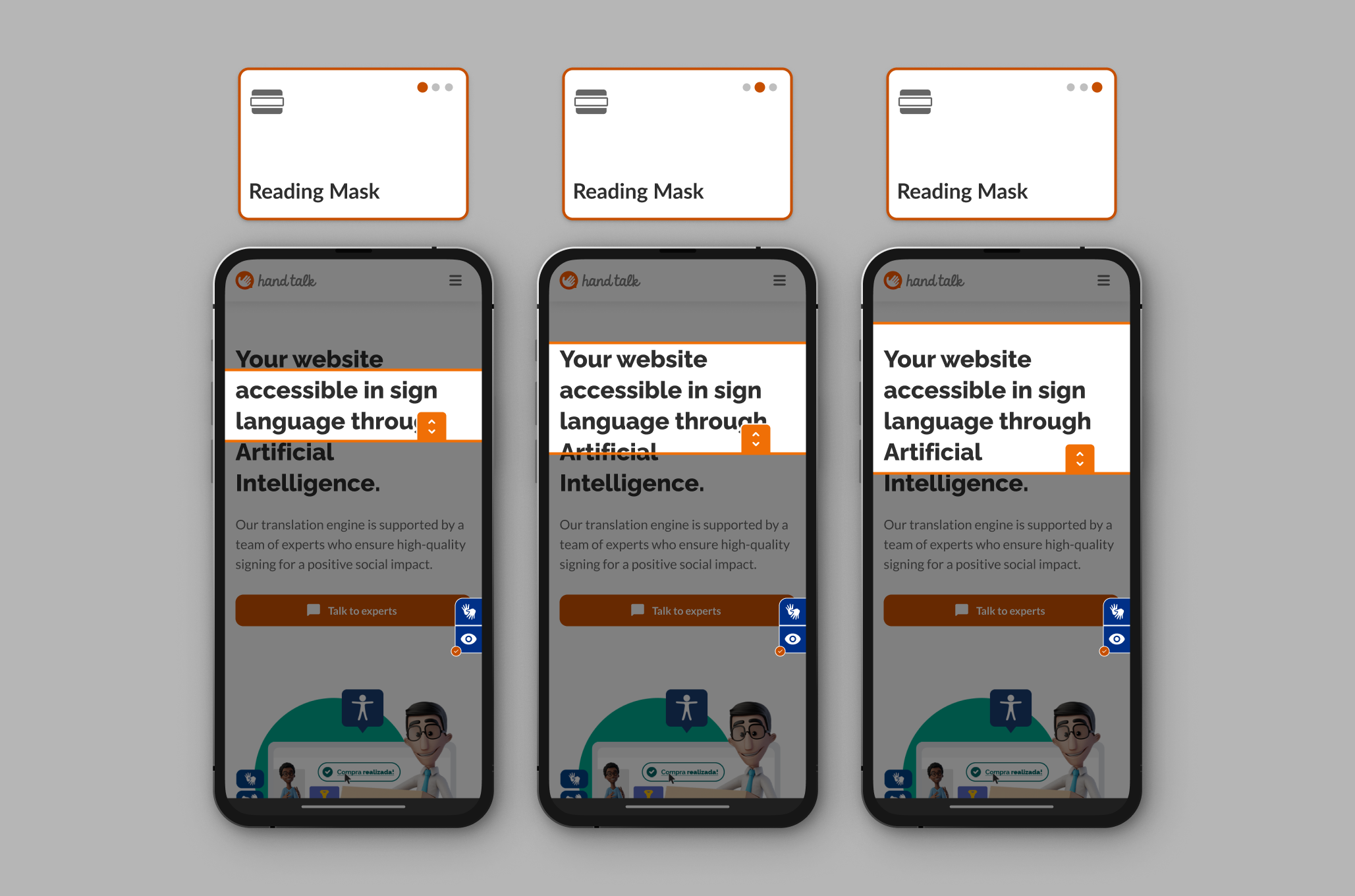
Reading Mask
The reading mask allows users to focus on specific text sections, adjusting its height to small, medium, or large, reducing visual fatigue and enhancing the experience for users with concentration difficulties.
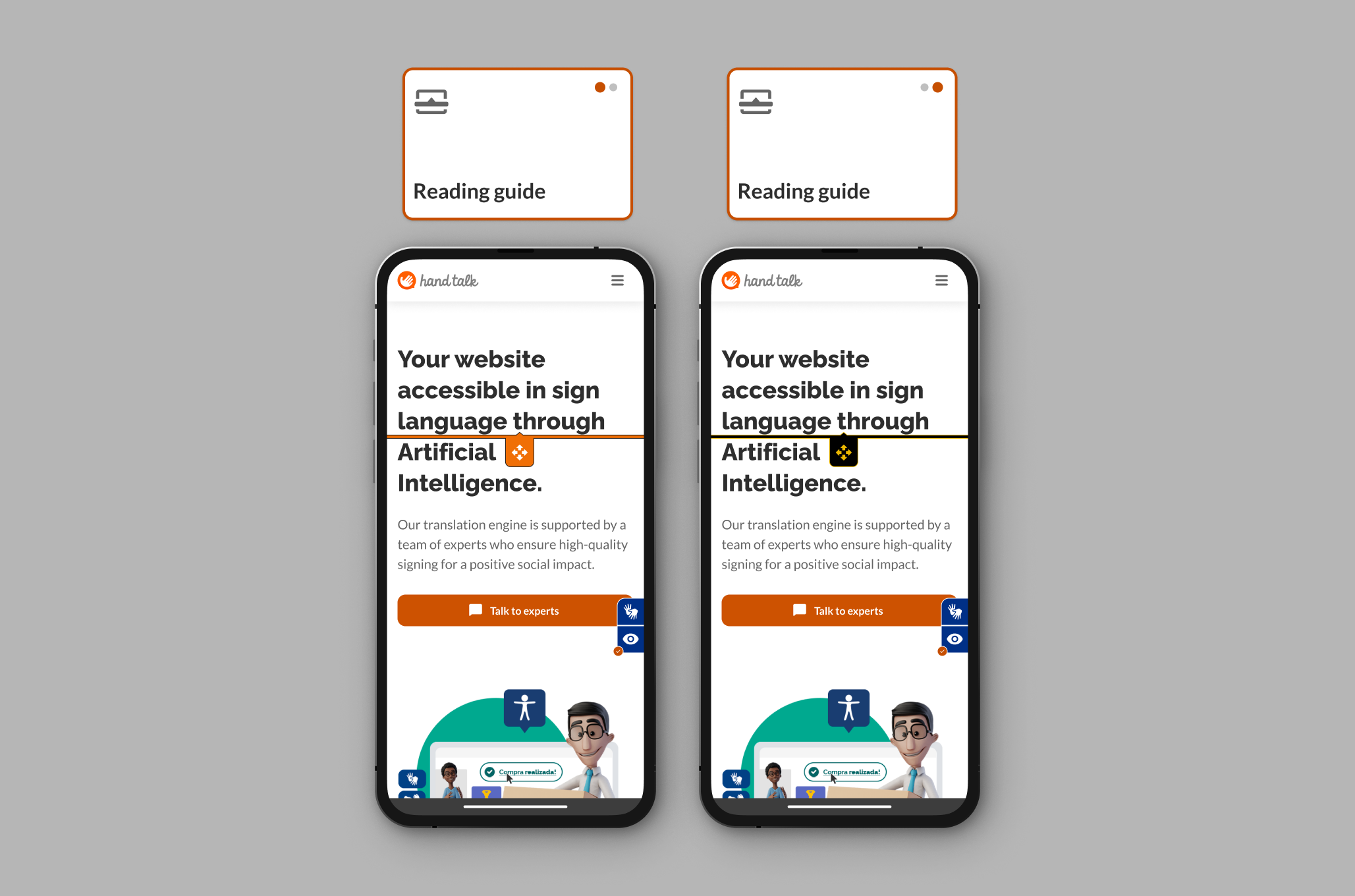
Reading Guide
Acts as a guide for user reading, available in orange, yellow, and black.
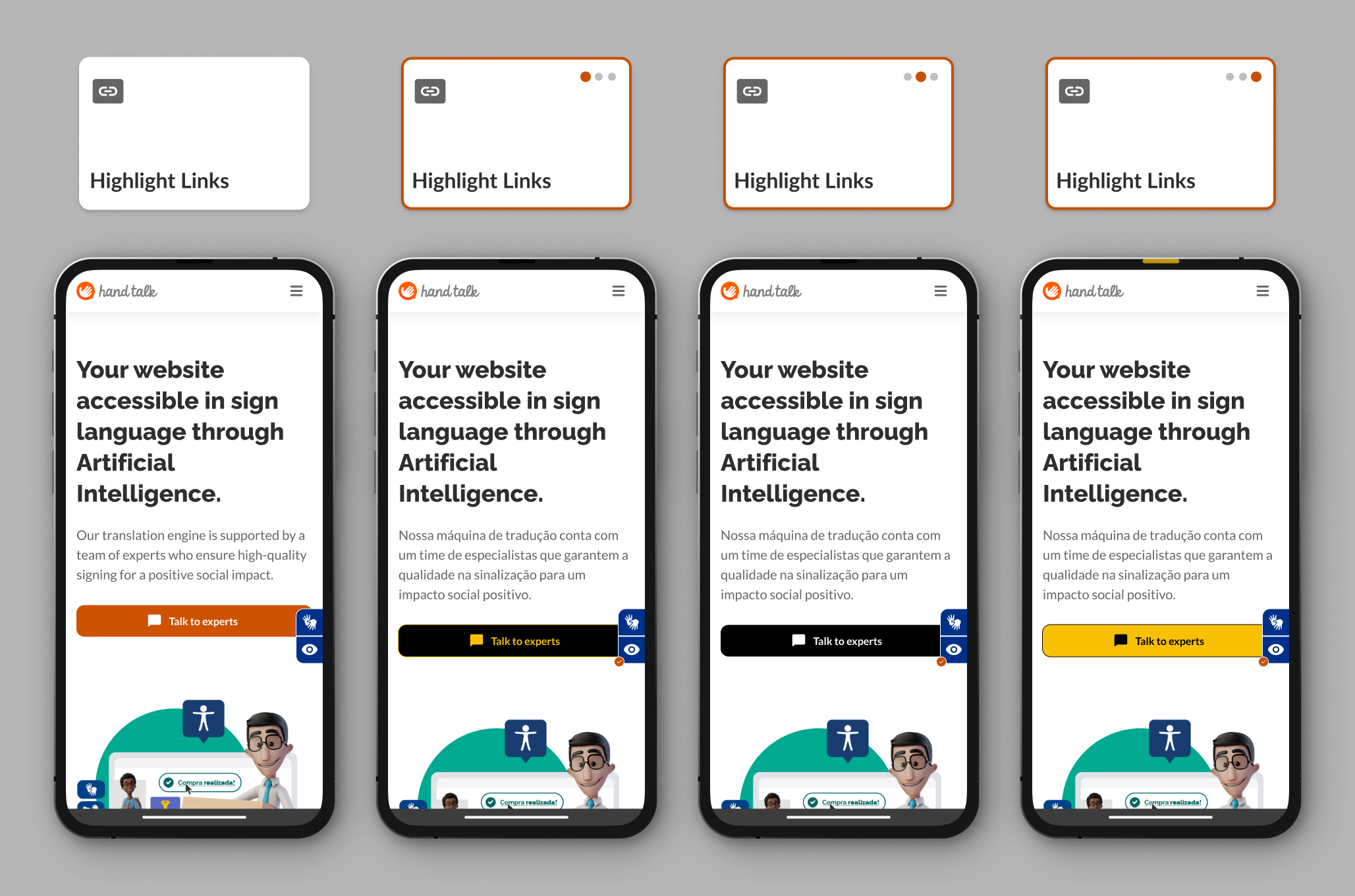
Highlight Links
The Highlight Links Accessibility feature highlights all elements on the web page identified as links, whether through the <a href> element or the role="link" attribute.
This feature makes links more visible for users with low vision or navigation difficulties.
Page Structure
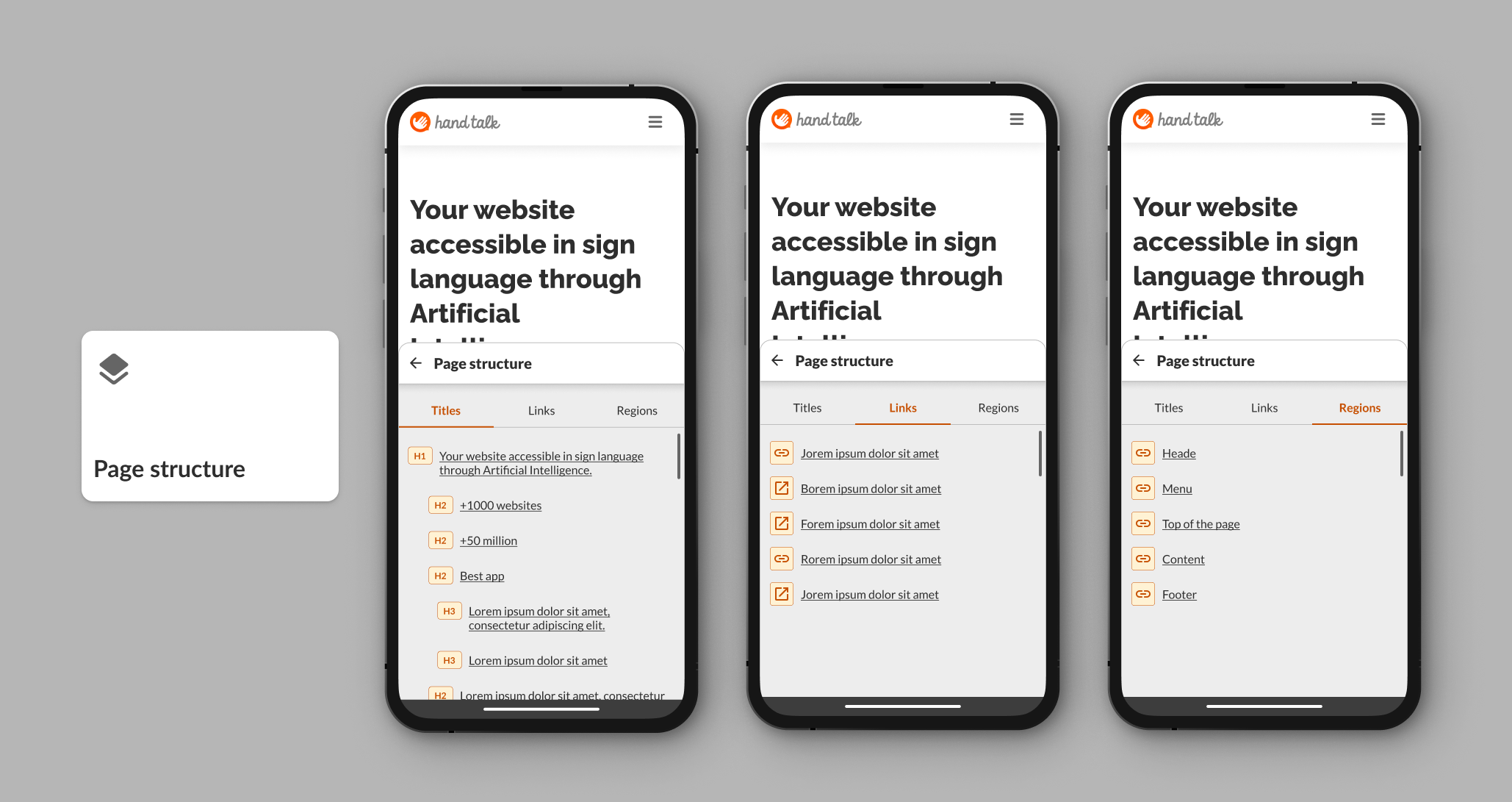
This feature helps users with navigation difficulties, such as those with cognitive or visual impairments, better understand the site structure. It facilitates information location and promotes efficient navigation.
Clicking this feature opens a new screen in the plugin, divided into three tabs: Titles, Links, and Regions.
- ✅ In the Titles tab, all page headings are listed with hyperlinks, allowing quick access to sections.
- ✅ The Links tab lists all internal (identified by a chain icon) and external links (indicated by a square with an arrow), redirecting users to the respective content.
- ✅ The Regions tab lists parts of the page (header, menu, content, and footer), and clicking on any of them takes the user to their location on the page.
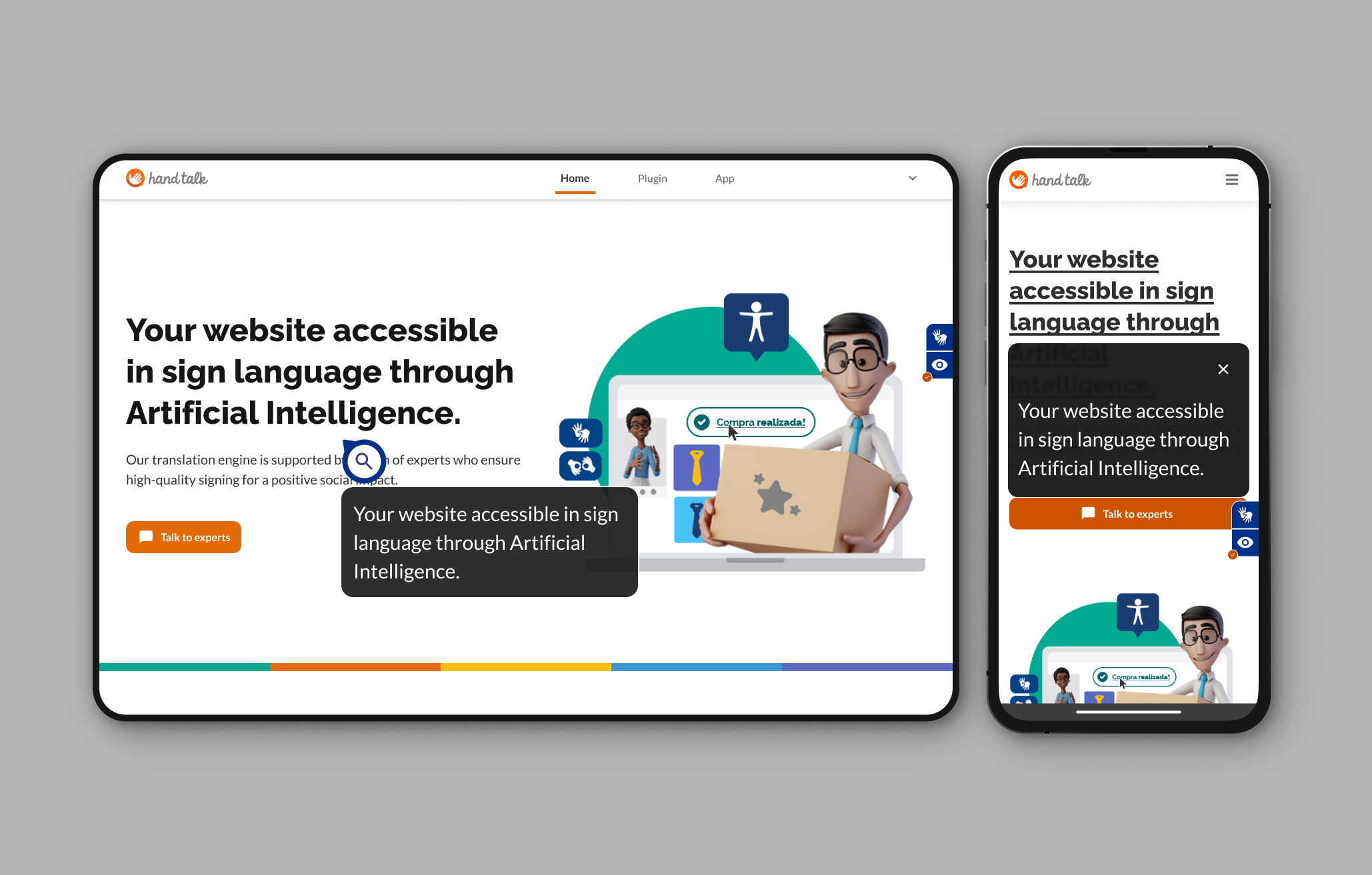
Content Magnifier
The Content Magnifier feature enlarges texts in a box to facilitate reading.
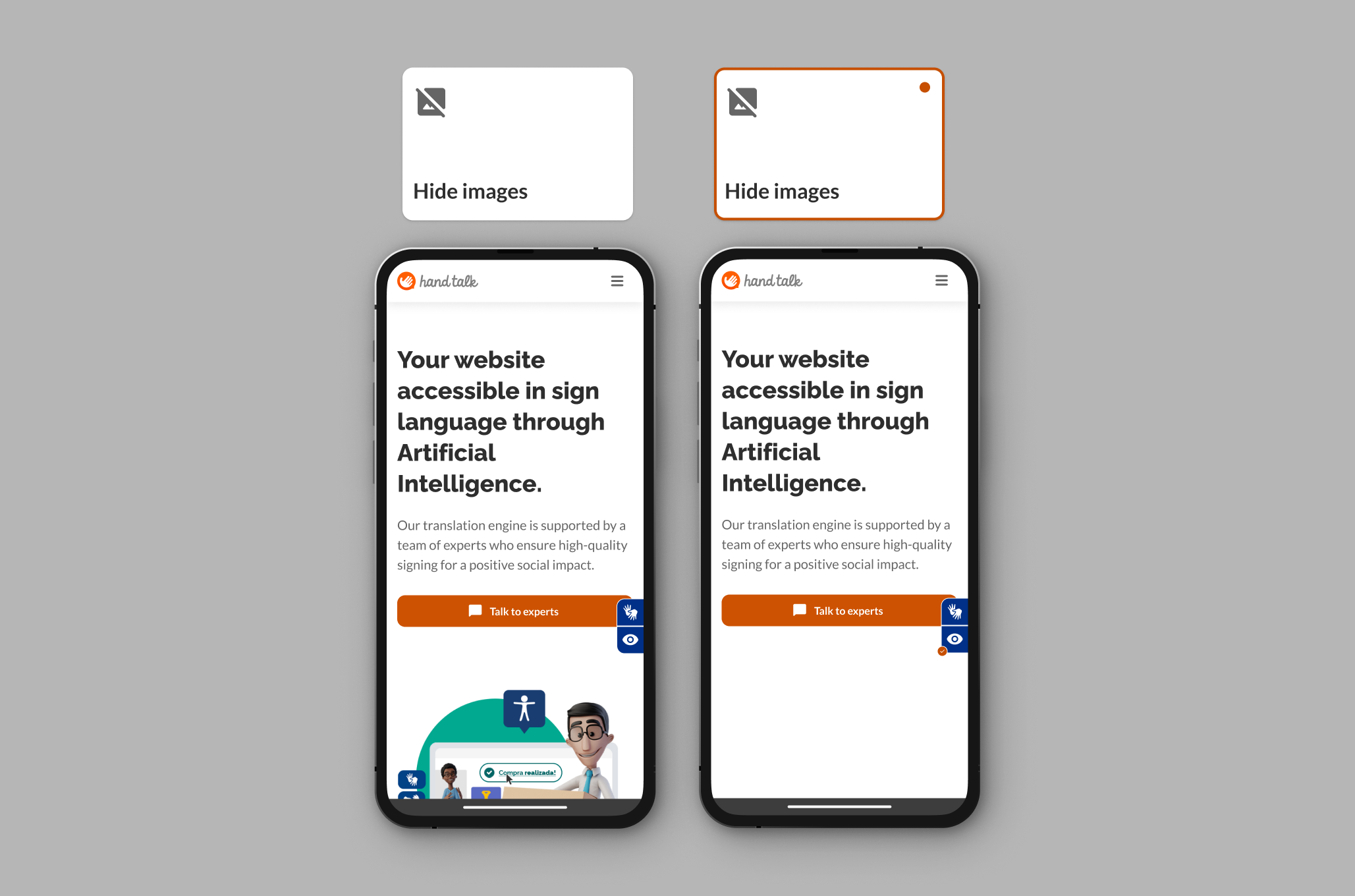
Hide Images
This feature allows users to hide all images added with the <img> tag. With a single click, images disappear, and a second click restores them.
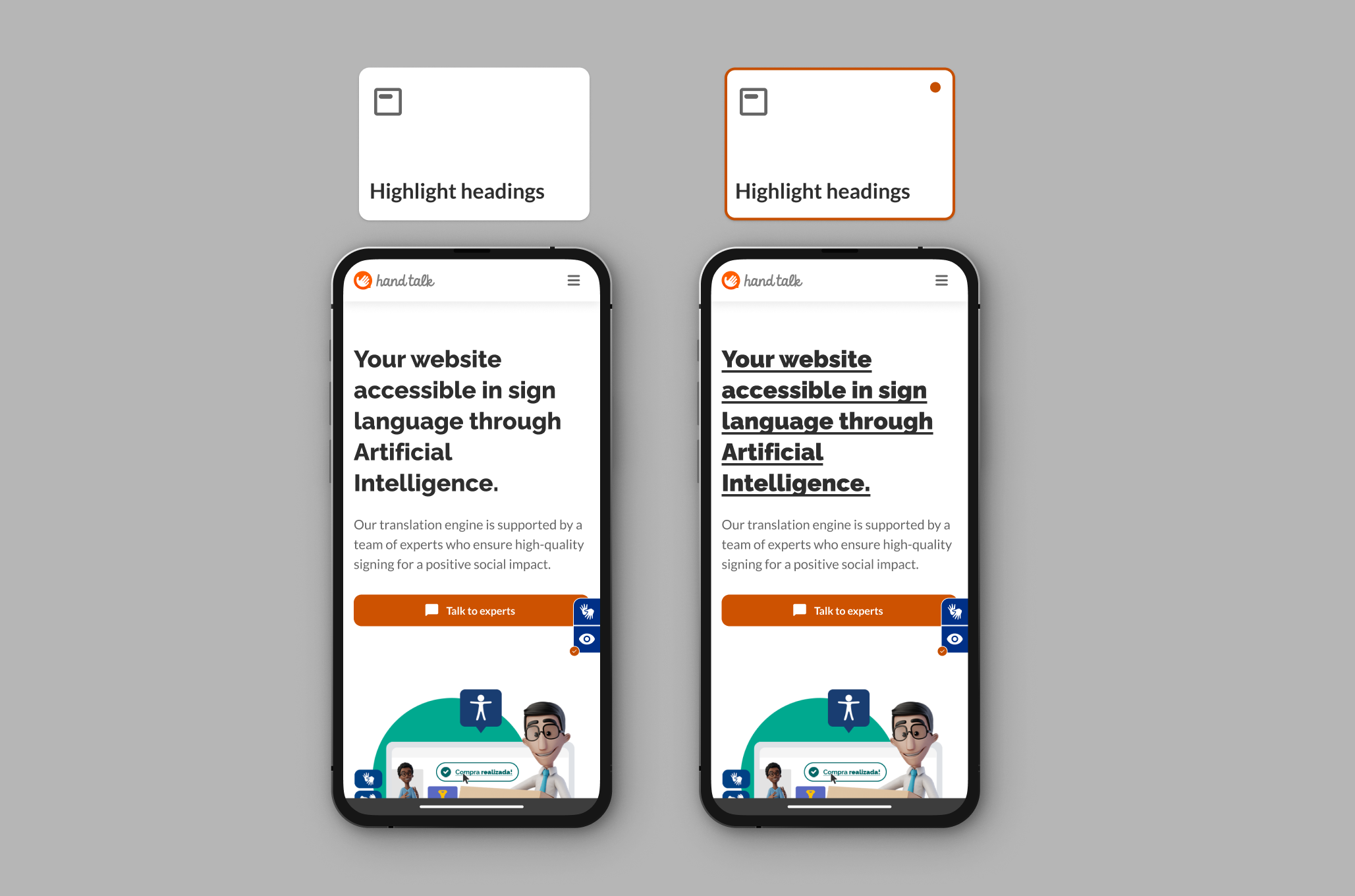
Highlight Headings
This feature activates a visual highlight on all text within the <h1>, <h2>, <h3>, <h4>, <h5>, and <h6> tags on the page.
Clicking it underlines and highlights all headers, making navigation and section identification easier.
Stop Animations
With this feature, users can stop simple CSS animations with a single click. Clicking again resumes animations from where they were paused.

Stop Sounds
By enabling the Stop Sounds feature, all native HTML media, such as <audio> and <video>, as well as <iframe> YouTube videos, are paused and muted.
This feature is especially useful when media does not offer native controls to stop or mute sound.

Color Control
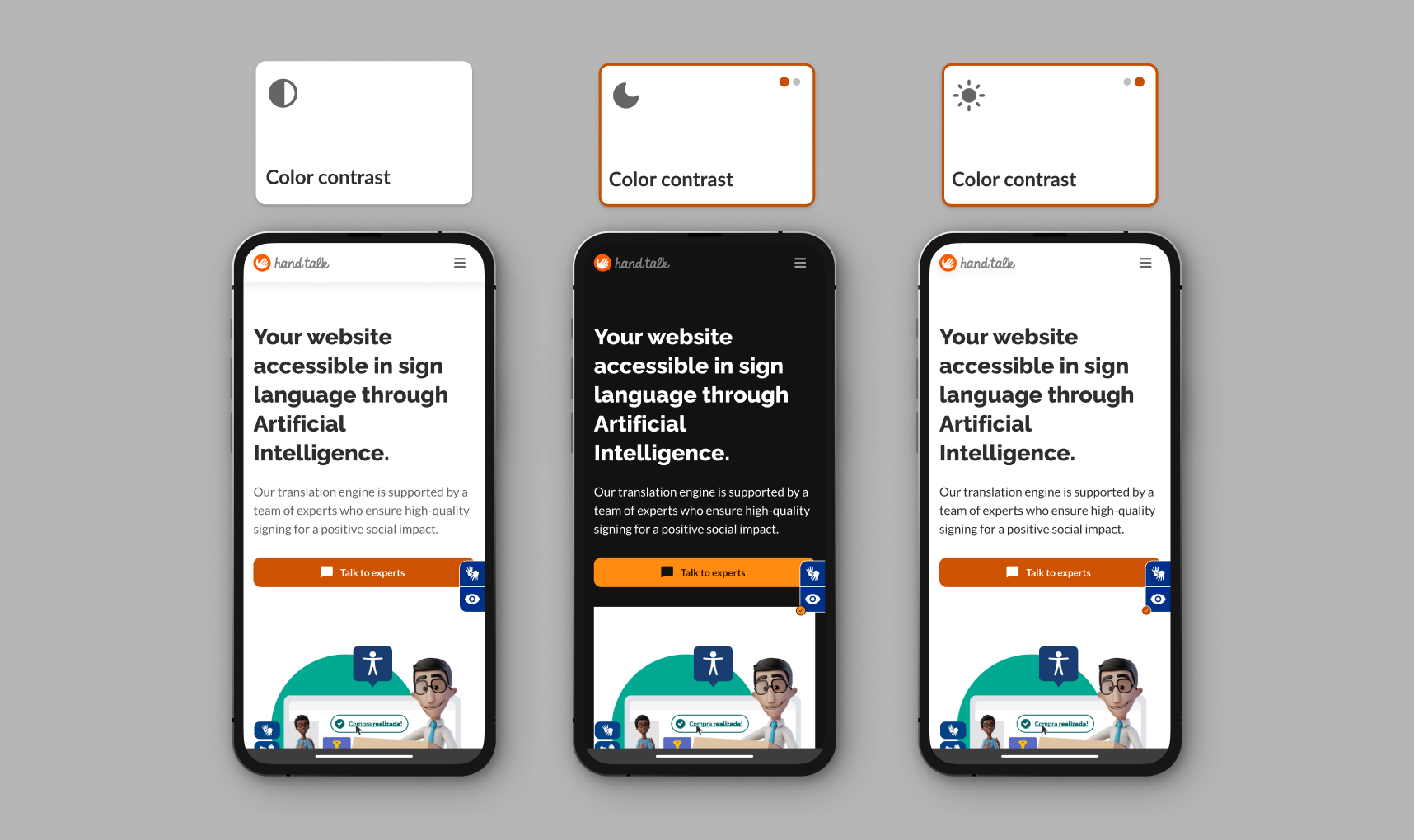
Color Contrast
With the Color Contrast feature, users can switch between inverted colors, dark contrast, and light contrast, catering to individual preferences, improving readability, and promoting inclusion for different visual conditions.
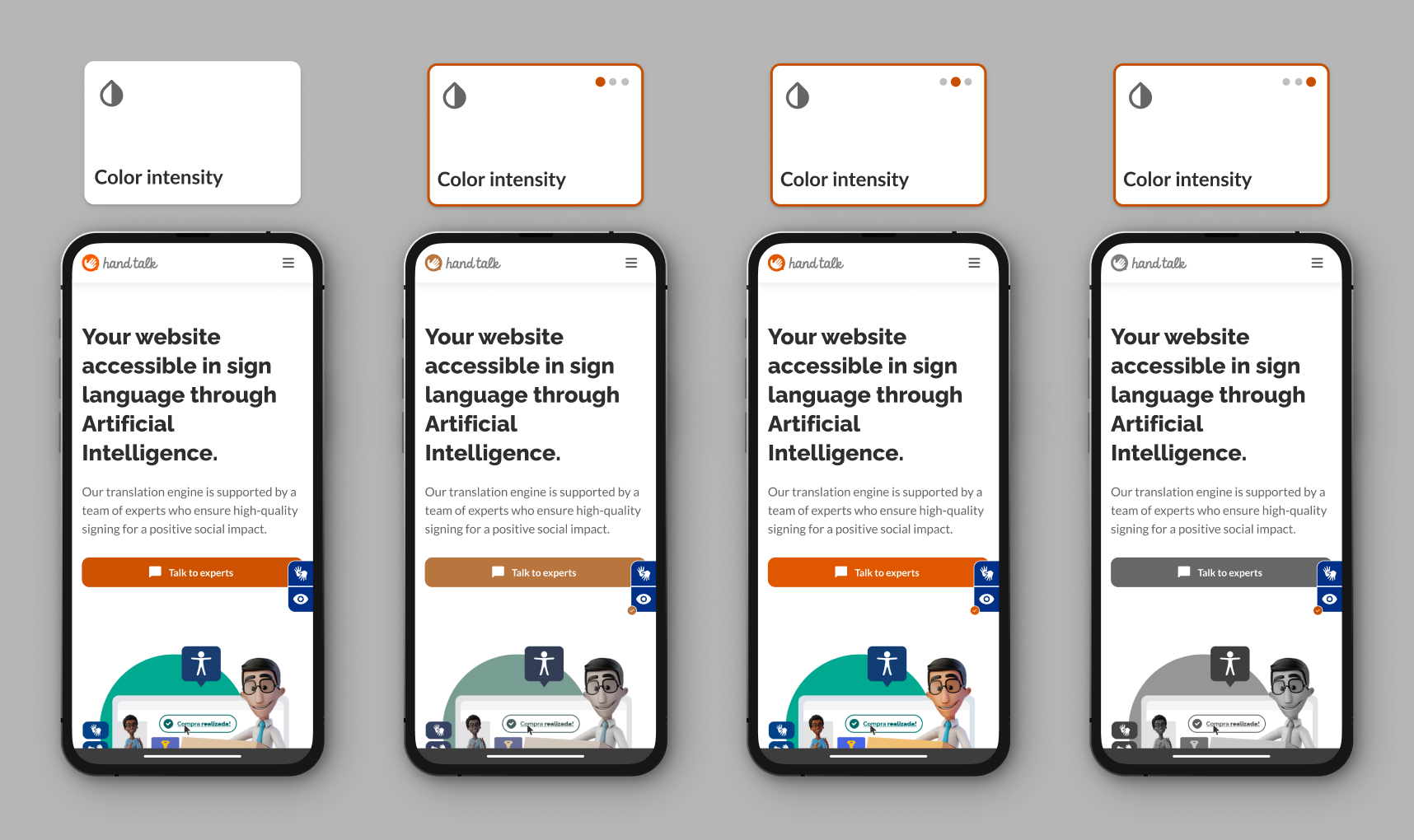
Color Intensity
With three available saturation options—Low Saturation, High Saturation, and Monochrome—users can adjust the visual presentation of websites according to their personal preferences or specific needs.
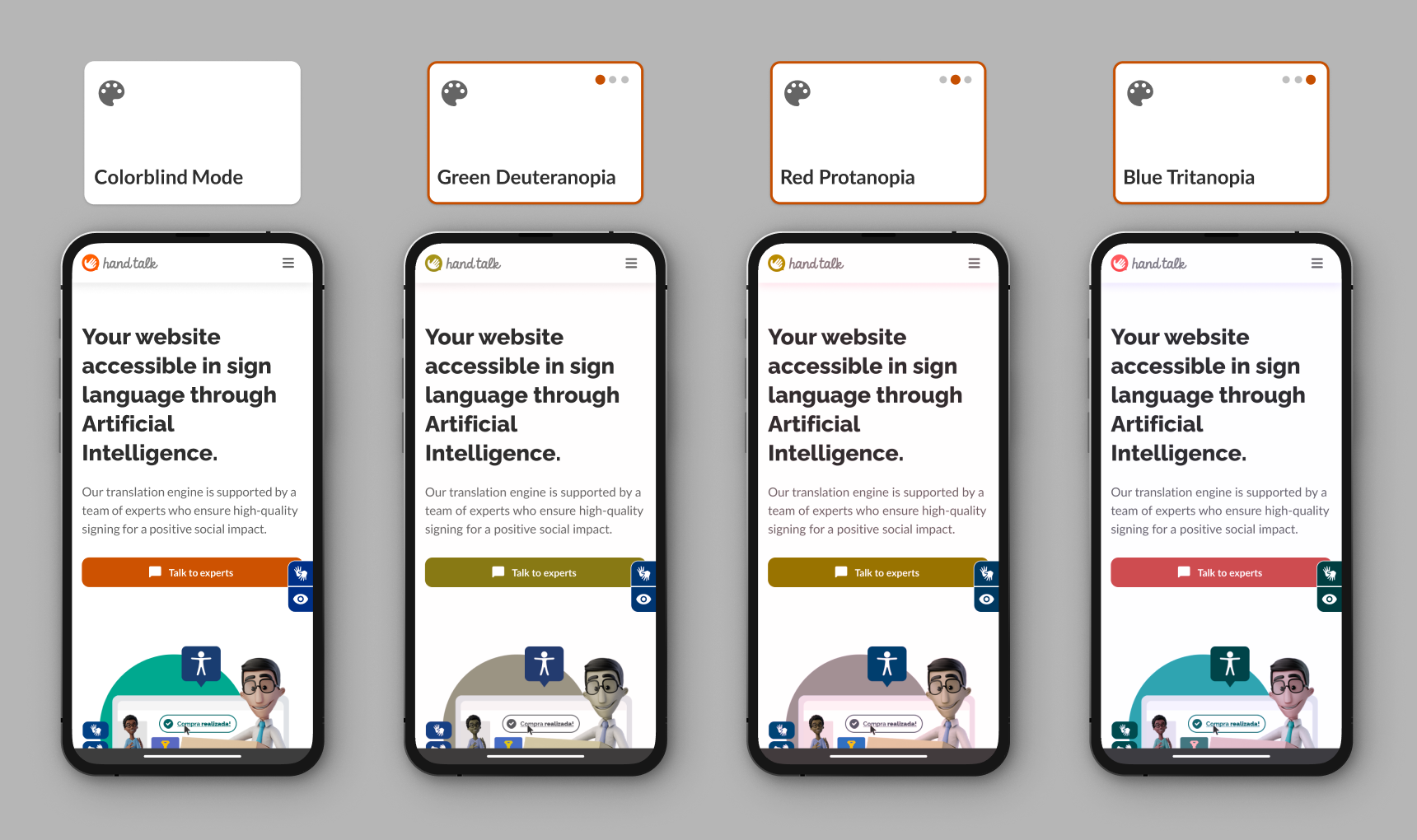
Colorblind Mode
The Colorblind Mode is an accessibility feature that adjusts the color hues of the entire page based on the selected type of color blindness. This ensures improved legibility and visual comfort without compromising accessibility, making content easier to perceive for people with different types of color vision deficiency.
Currently, three adjustment options are available:
- Green (Deuteranopia): simulates how people with difficulty distinguishing green shades perceive the page.
- Red (Protanopia): simulates how people with difficulty distinguishing red shades perceive the page.
- Blue (Tritanopia): simulates how people with difficulty distinguishing blue shades perceive the page.
By enabling Colorblind Mode, the page’s color palette adapts accordingly, ensuring inclusive access to information for all users.
Reset Resources
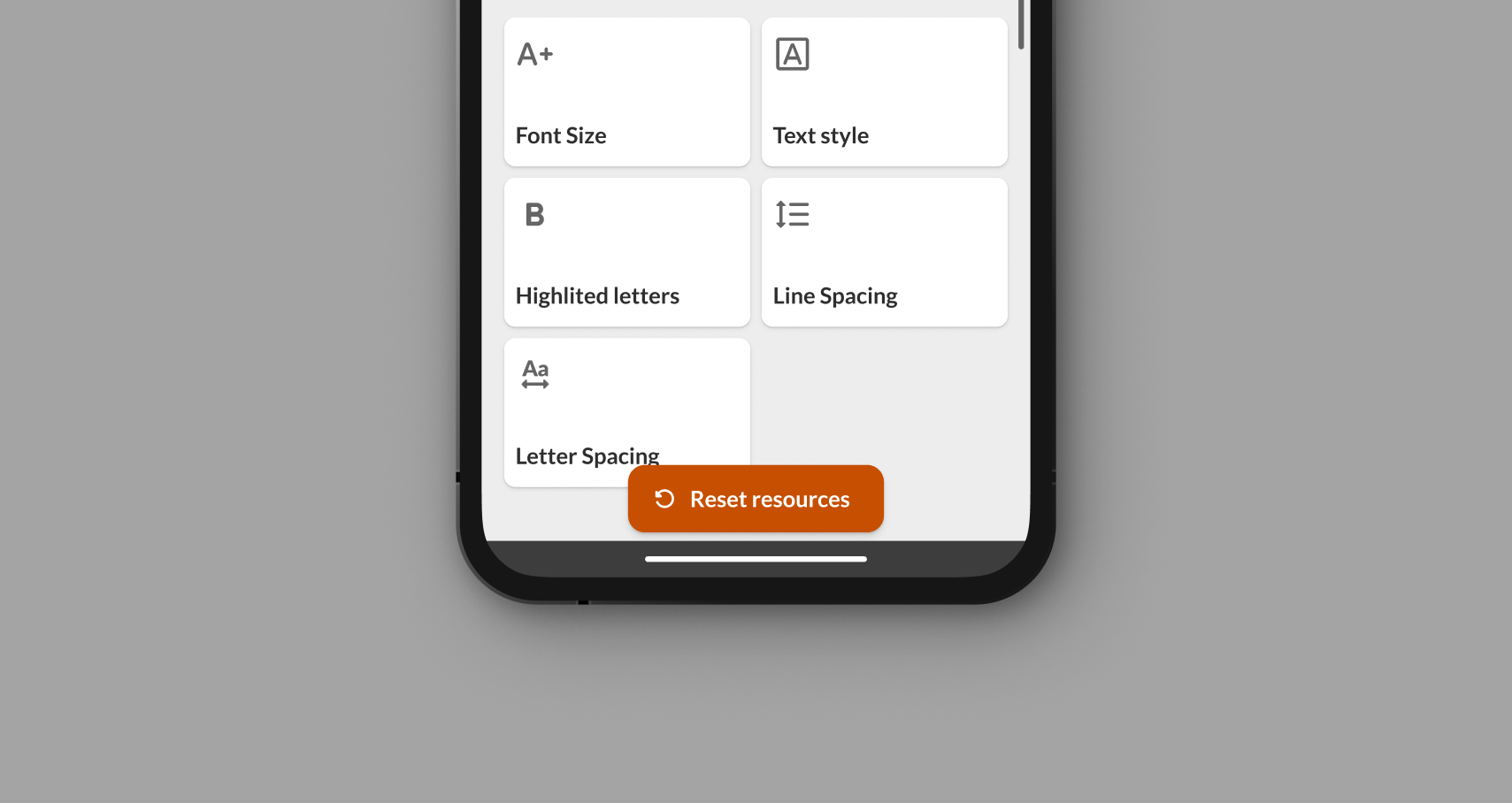
When any feature is enabled, a floating "↺ Reset Resources" button appears. This button resets all features to the default mode.
Top Menu
Accessibility Features Window Expansion
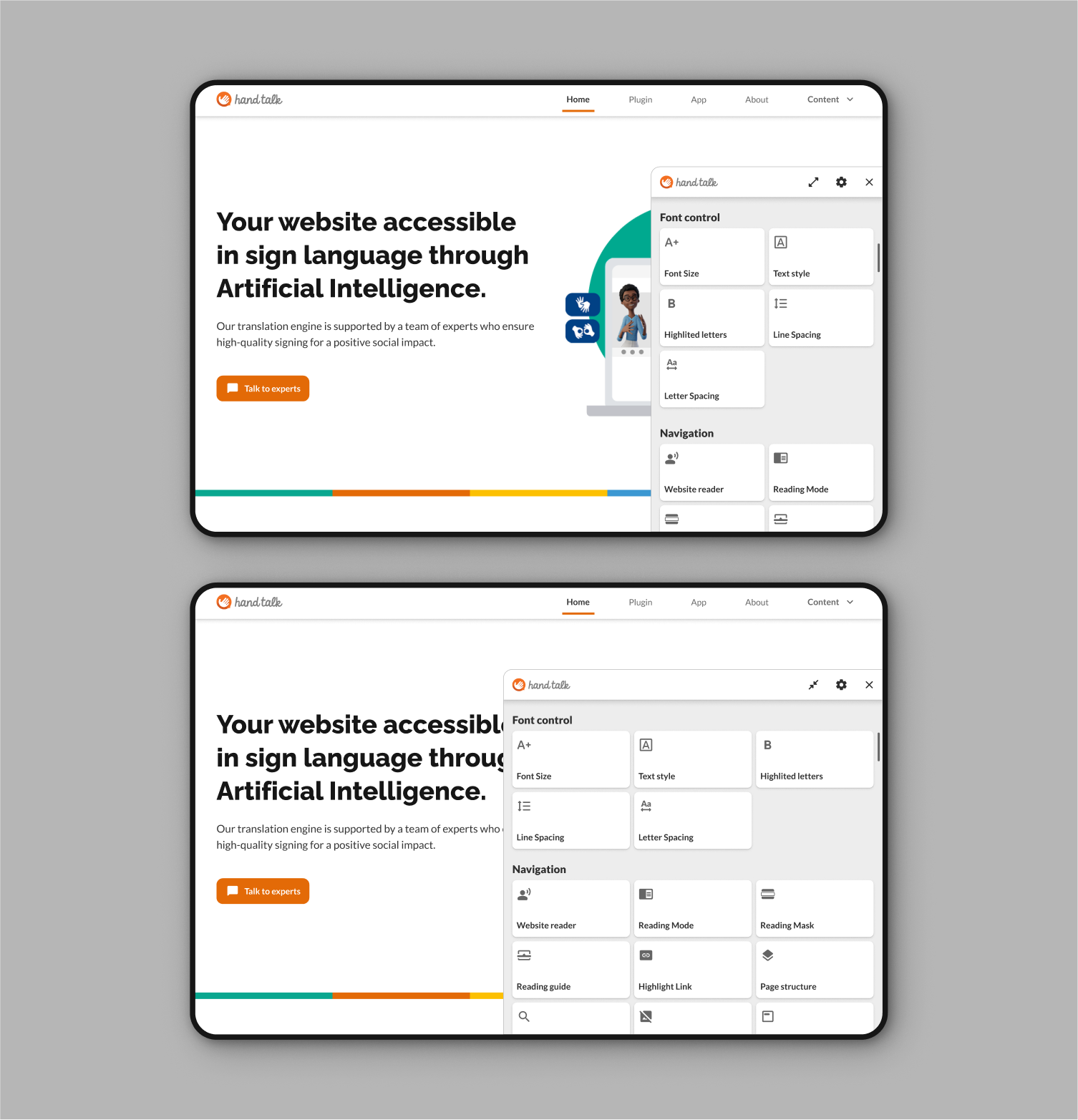
A button represented by a double arrow ⇿ expands the Accessibility features window.
Settings
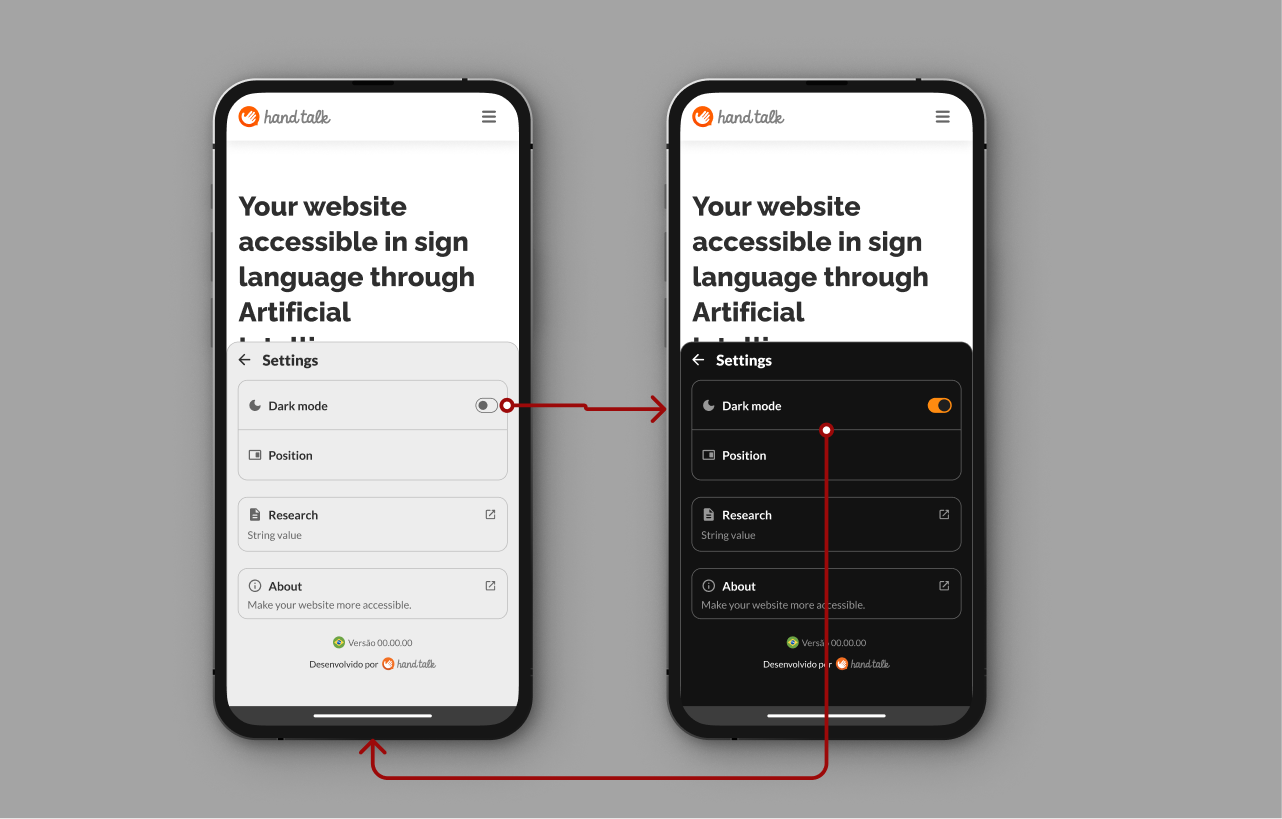
Opens settings where users can:
- ✅ Switch the Accessibility Features window between light and dark mode.
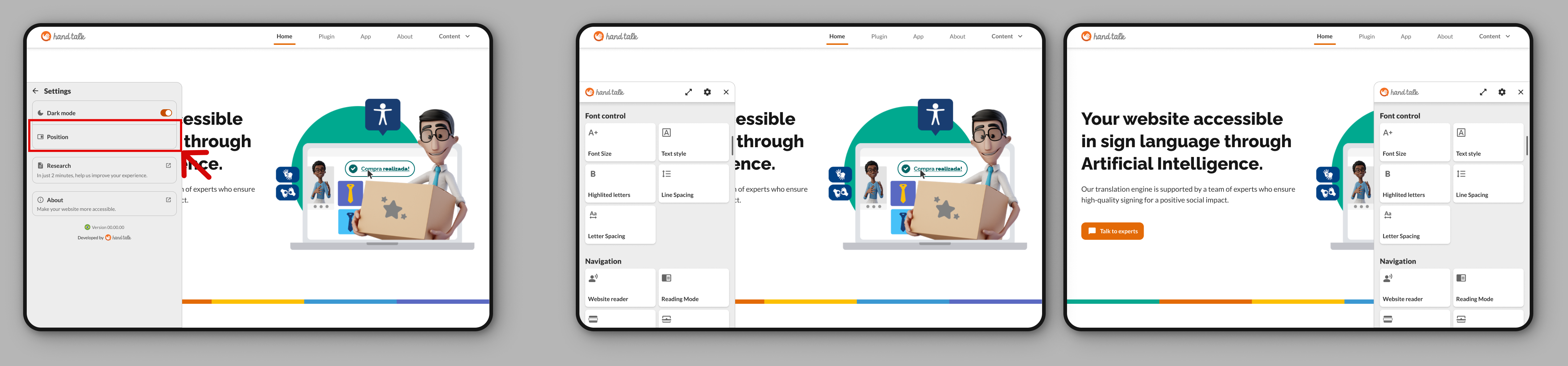
- ✅ Change the plugin position (left or right of the screen).
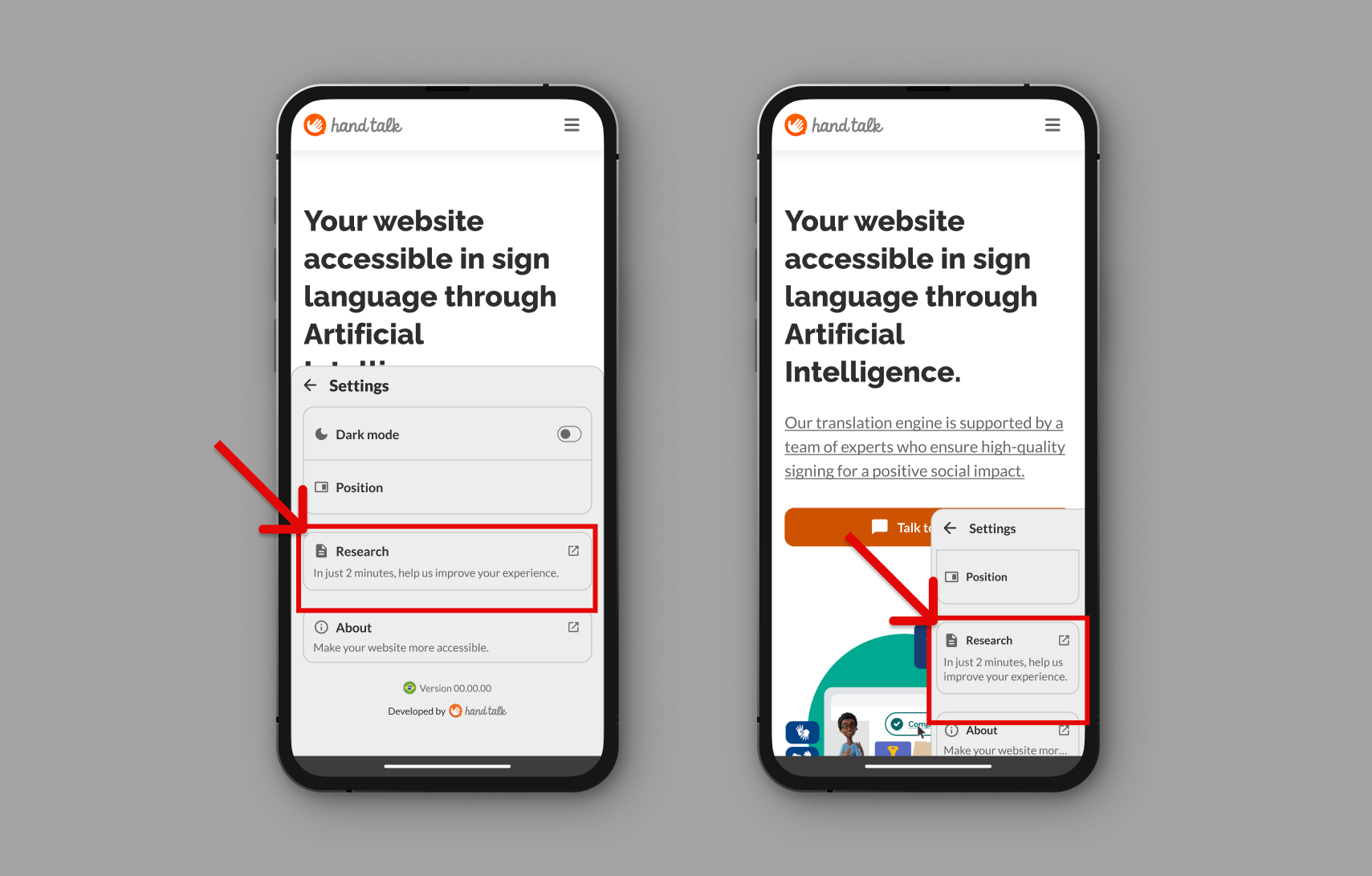
- ✅ Access the search button, where users can view Hand Talk research.
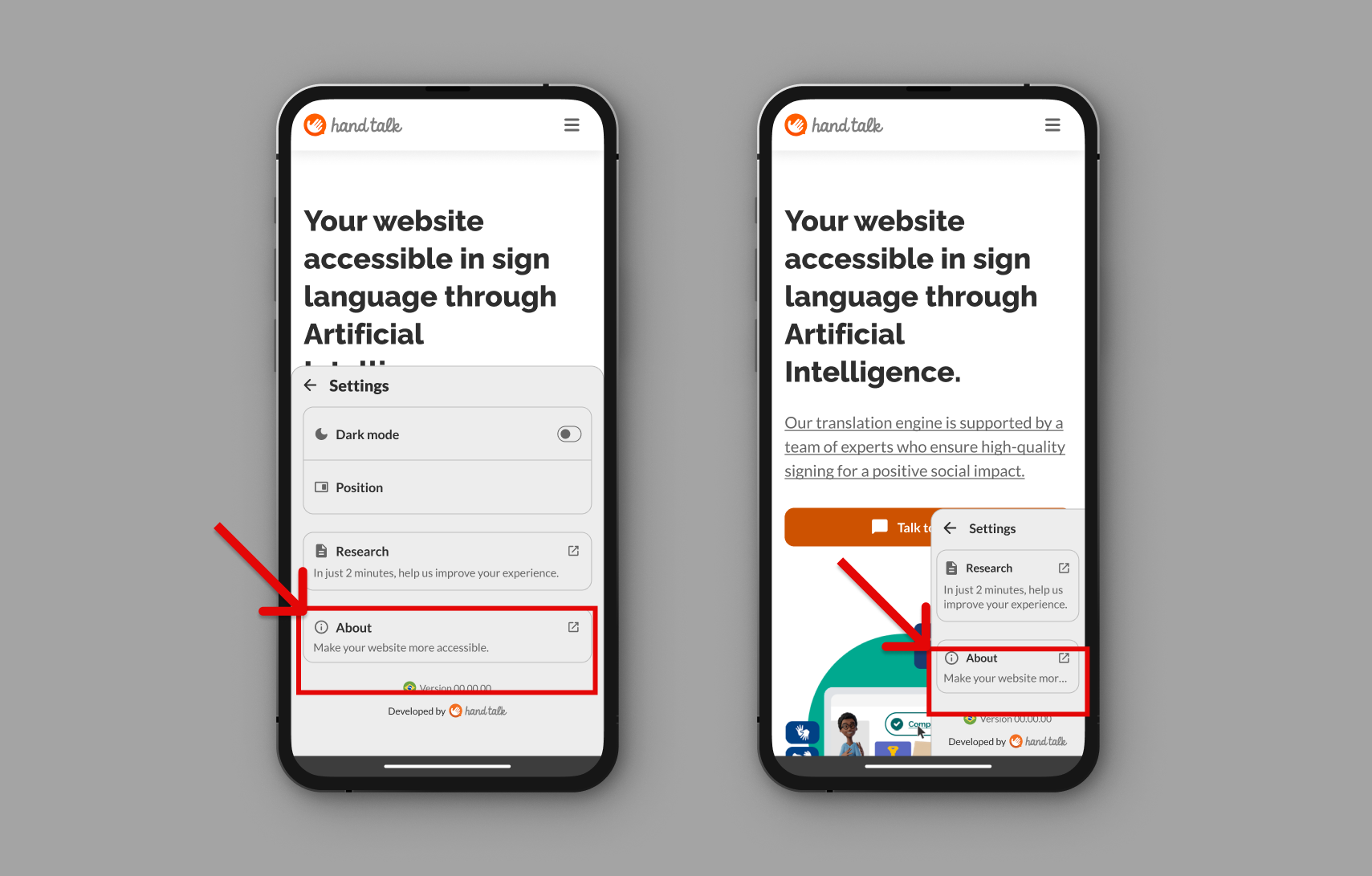
- ✅ Access the "About" button for more plugin information.
Close
Button to close the Accessibility features.